Tax Bill Setup
The Tax Bill Setup tab allows options for the tax bill format and allows you to print the tax bills with the separate "Current Use Credit" line item (however confusing it may be to your taxpayers). To access the Tax Bill Setup, select Utilities | Town Settings | Miscellaneous Tab | Tax Bill Setup tab.
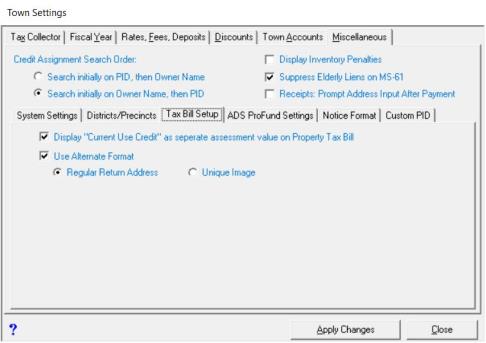
To print the bills with the “Current Use Credit” line item, select the box "Display "Current Use Credit” as separate assessment on Property Tax Bill".
The traditional tax bill format, which is the default setting, is divided into three distinct thirds with each third containing essentially the same information. The bottom third is removed and retained at the town office before mailing the other two thirds to the taxpayer. The taxpayer will then keep the middle portion for his or her records and return the top portion with the payment.
The alternate tax bill format is designed to as an entire page that is sent to the taxpayer and they return the bottom third with the payment. By doing it this way, it simplifies the bill by eliminating much of the duplication of information. If you elect to use this format, you must make certain to either print a duplicate set of bills (the entire page) to retain for your records, or you should export a copy of the bills to PDF format for reference.
The alternate property tax bill format has several advantages:
- You have more control over the message you include on the tax bill. This format provides more space than the previous two lines.
- You can choose to include an image unique to your town across the top of the tax bill. Similar to the notices, you can include an image that spans the width of the page. Or you can include an image that's only half the width of the page.
- The bill more clearly indicates the current due amount, as well as any past due amounts.
- The bottom third is formatted such that it can be inserted into a standard double window envelope and to reveal the appropriate payment and return addresses.
To use the alternate tax bill format, check the box labeled “Use Alternate Format”. Once you do, you have several options for formatting the header of the bill. The “Regular Return Address” option uses the default, in which the municipality's address information appears in the upper right hand corner of the bill's top third (suitable for display through the envelope's second window). The “Unique Image” option allows you to add an image that will appear in the upper right hand corner of the tax bill. This could be a town seal saved as a JPG file. You may need to experiment with the proper size and scale in order to have it display properly on the tax bill. The “Same Image as Notices” option will appear if you have already configured your notices to include a header image. If you select this option, the same image will be used on the tax bills.
Once all changes have been made, select Apply Changes.